BRAIN Docs
Bitget API Connection Guide
Log in to your Bitget account
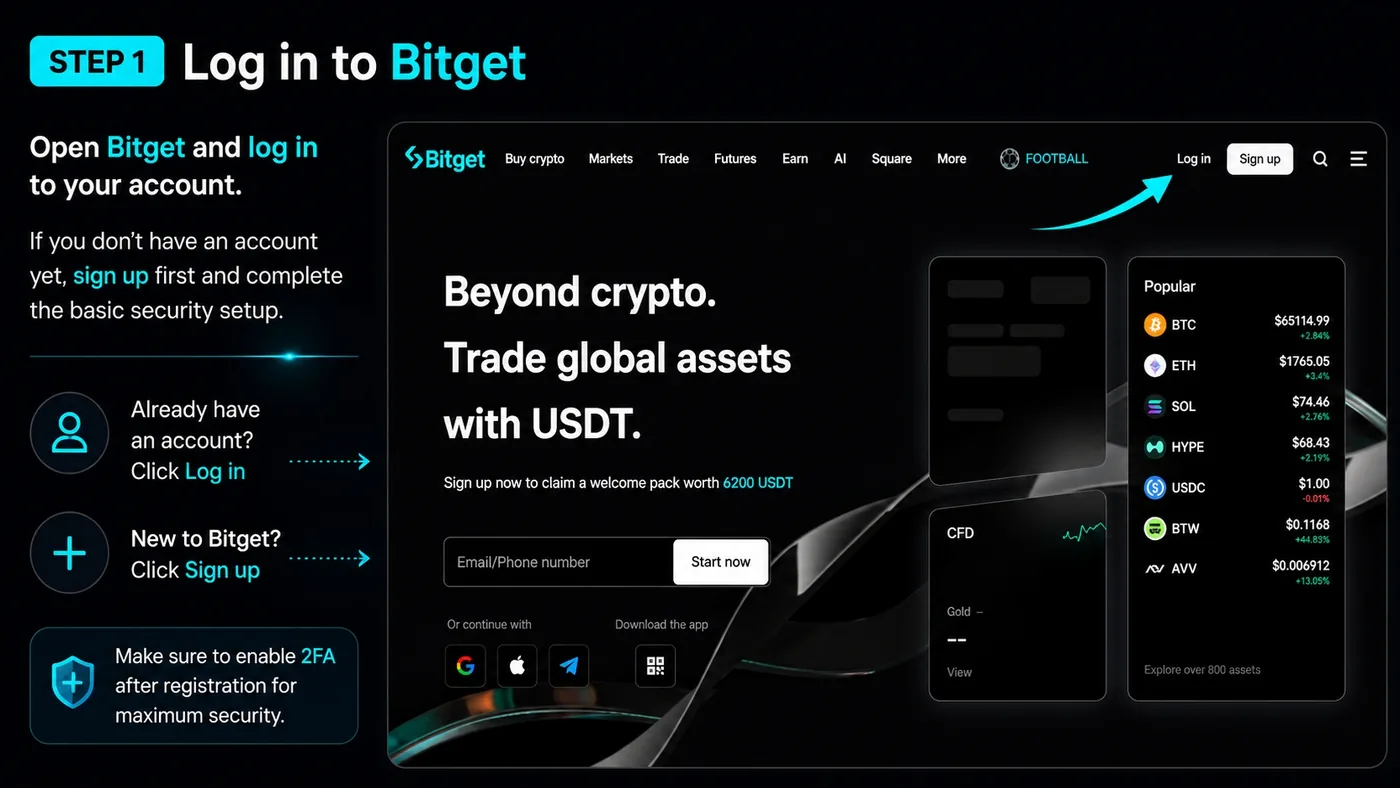
Open Bitget and log in to your account. If you do not have an account yet, create one first and complete the basic security setup.
Check access to futures
Before connecting the API, open the Futures / Derivatives section on the exchange. If the exchange shows an activation window, trading guide, risk notice, or introductory steps, confirm them and complete the short setup. Usually, this is enough to activate futures trading on the account.
Open API keys
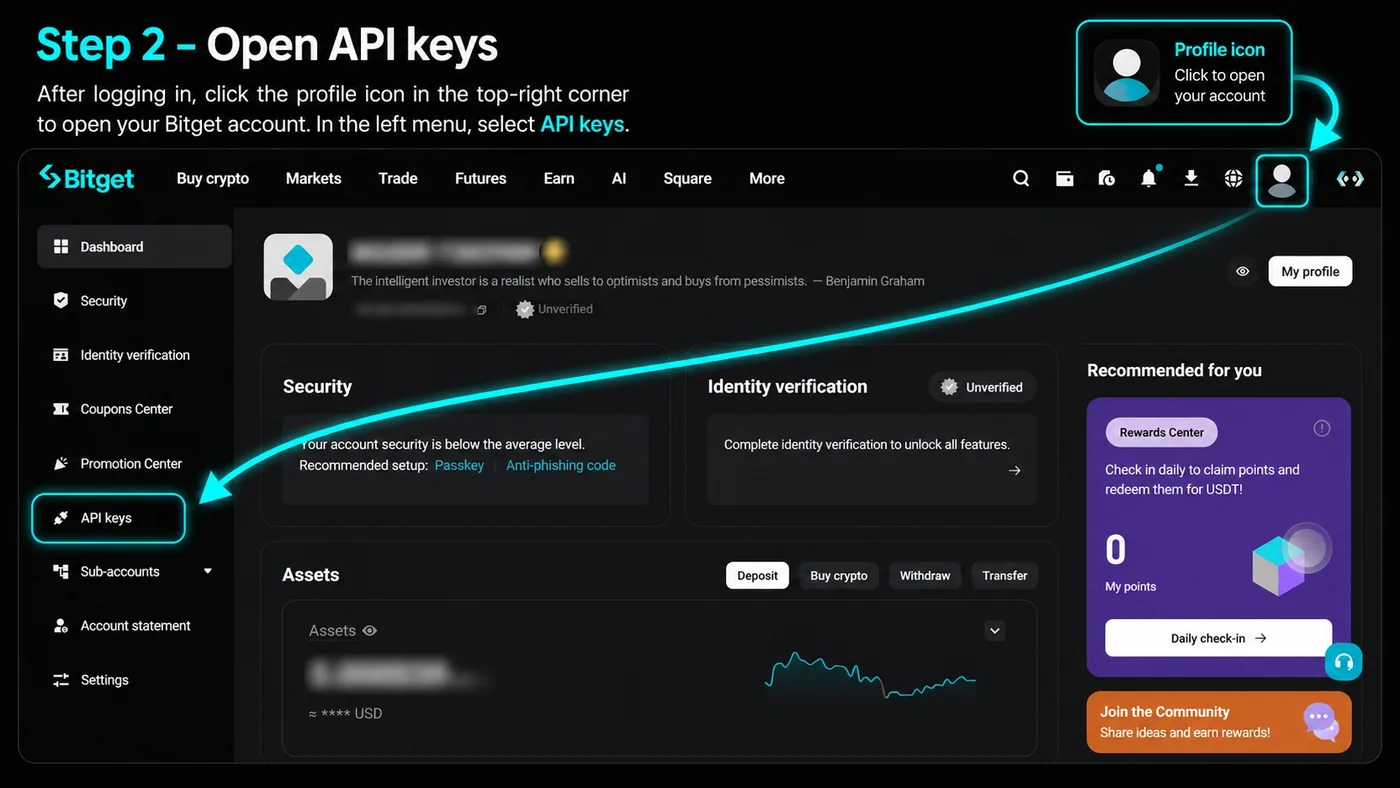
After logging in, click the profile icon in the top-right corner to go to your Bitget account area. In the menu, select API keys.
If you are using the mobile version, you can find API keys through search or in the Additional Services section.
Accept API terms
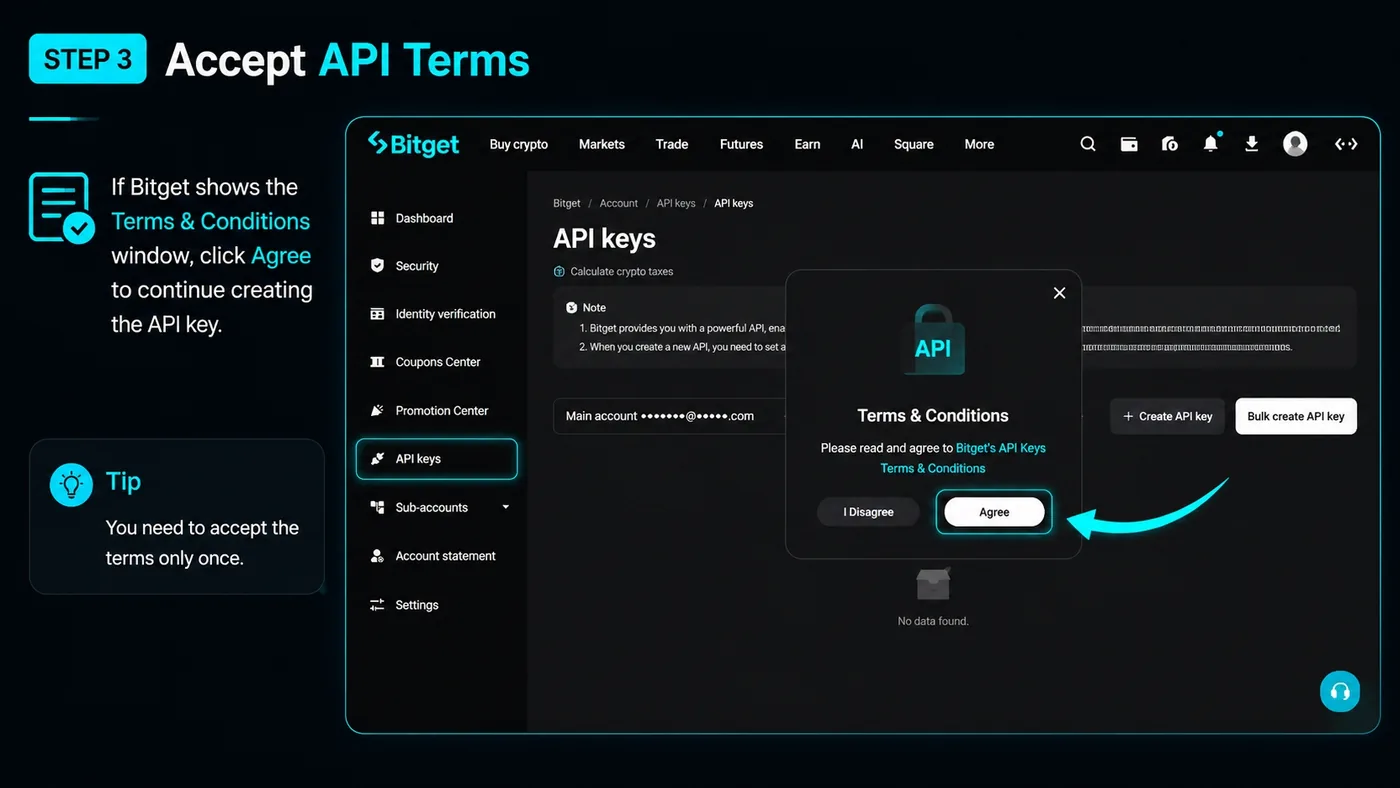
If Bitget shows the Terms & Conditions window, click Agree to continue creating the API key.
Create API key
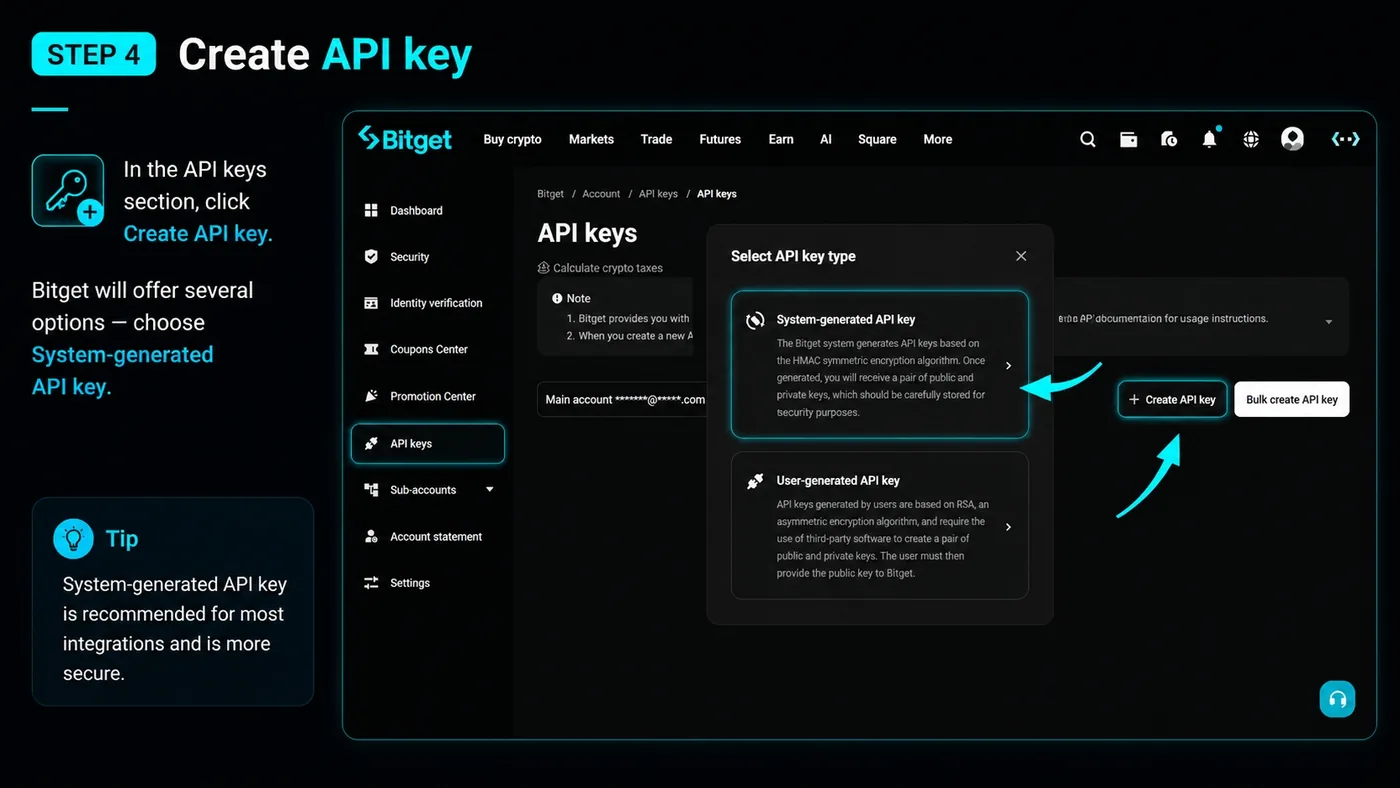
In the API keys section, click Create API key.
If Bitget offers several API key types, select the first option – HMAC / automatically generated API keys. Do not select the user-generated / RSA option.
Set the required parameters
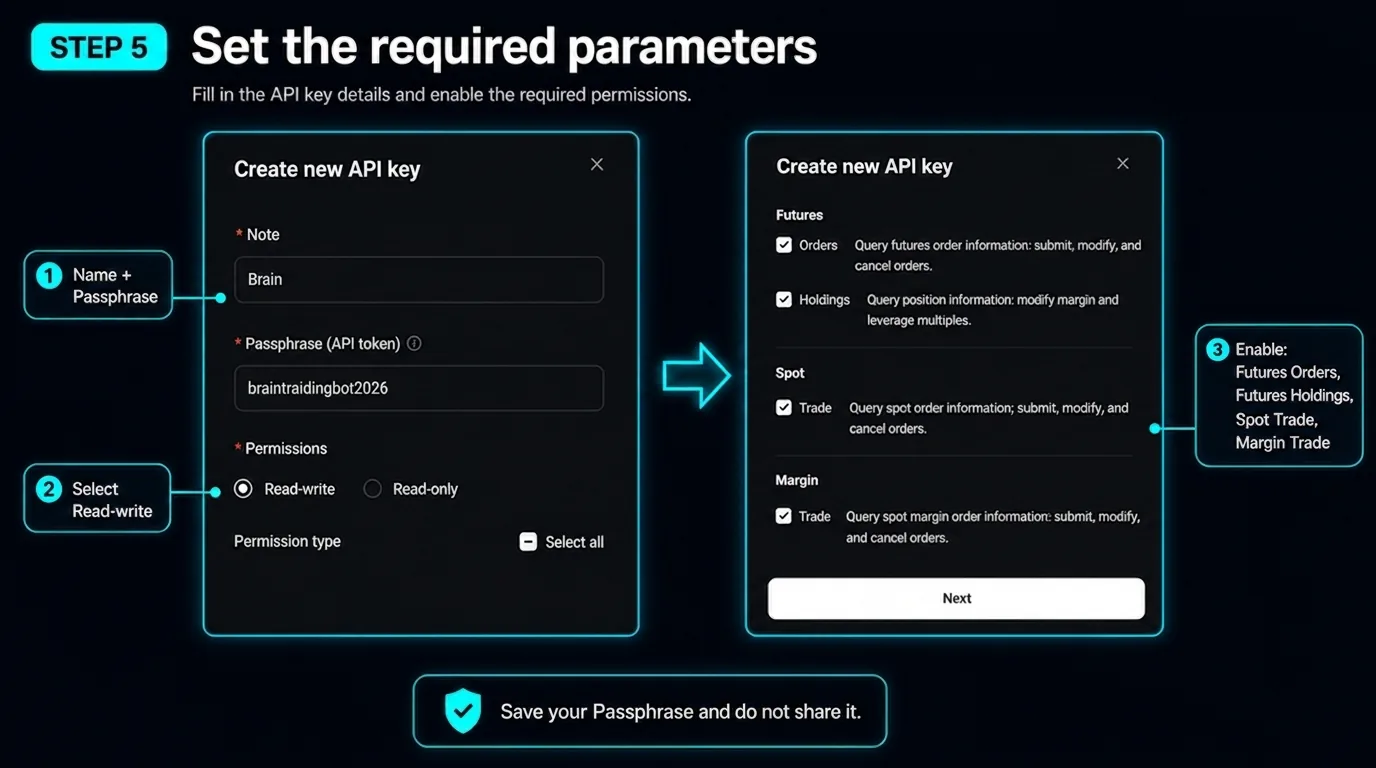
Enter the API key name, for example “BRAIN”. Then set the Passphrase (API token): choose your own combination of letters and numbers - do not reuse a password or the example shown in the screenshot. It must be saved because it will be needed when connecting Bitget in Brain. Do not show it to anyone.
Select Read-write
In the Permissions section, select Read-write mode. This is needed so that BRAIN can not only read data, but also execute trading actions according to the strategy.
Configure API permissions
In the Permission type section, enable only the Futures permissions:
- Futures - Orders
- Futures - Holdings
Leave Spot Trade, Margin Trade, Transfer, Copy Trading, Withdraw and Sub-account permissions unchecked - BRAIN trades USDT-M perpetual futures only, and Withdraw must stay OFF. (The screenshot shows an older setup with Spot and Margin ticked; they are not required.)
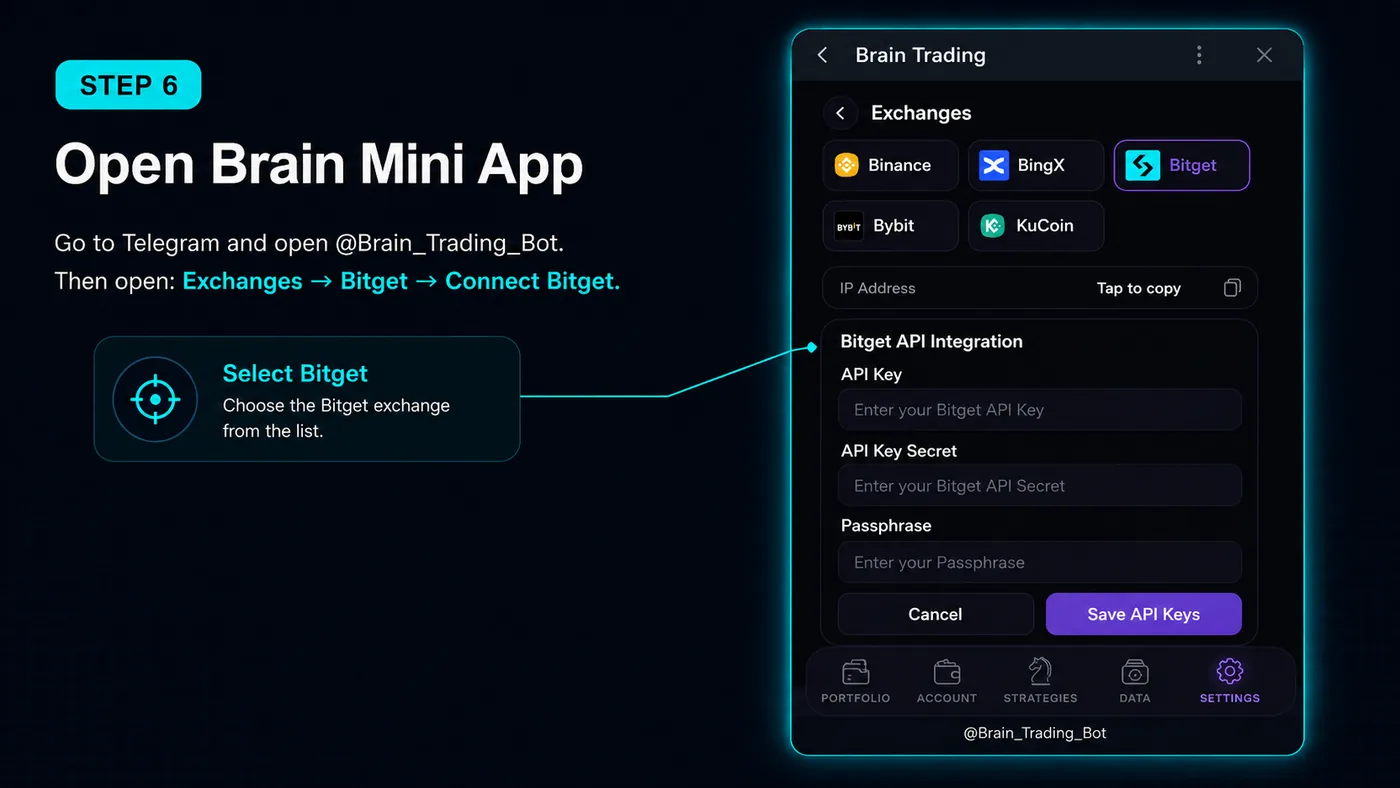
Open BRAIN Mini App
Go to Telegram and open @Brain_Trading_Bot.
Then open: Exchanges → Bitget
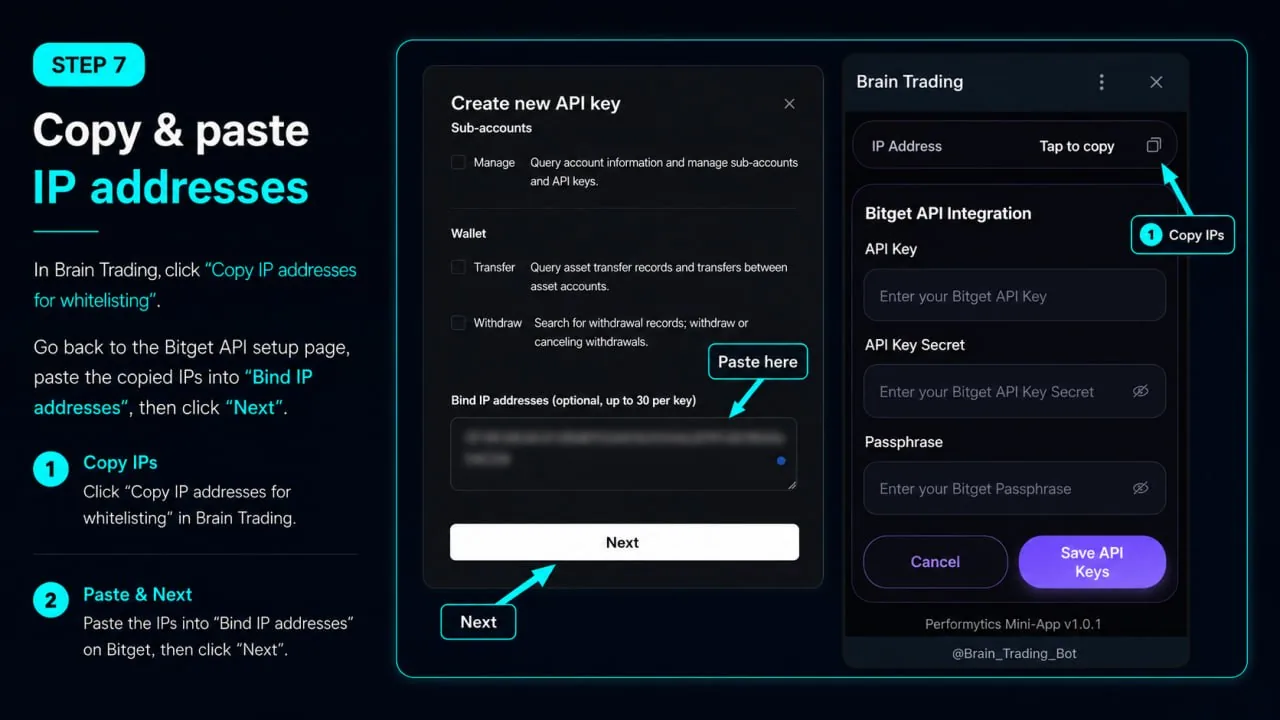
Copy / paste IP addresses from BRAIN
Click Copy IP addresses for whitelisting.
Return to the API key creation page in Bitget.
Paste the copied IP addresses into the Bind IP addresses field.
After that, click Next.
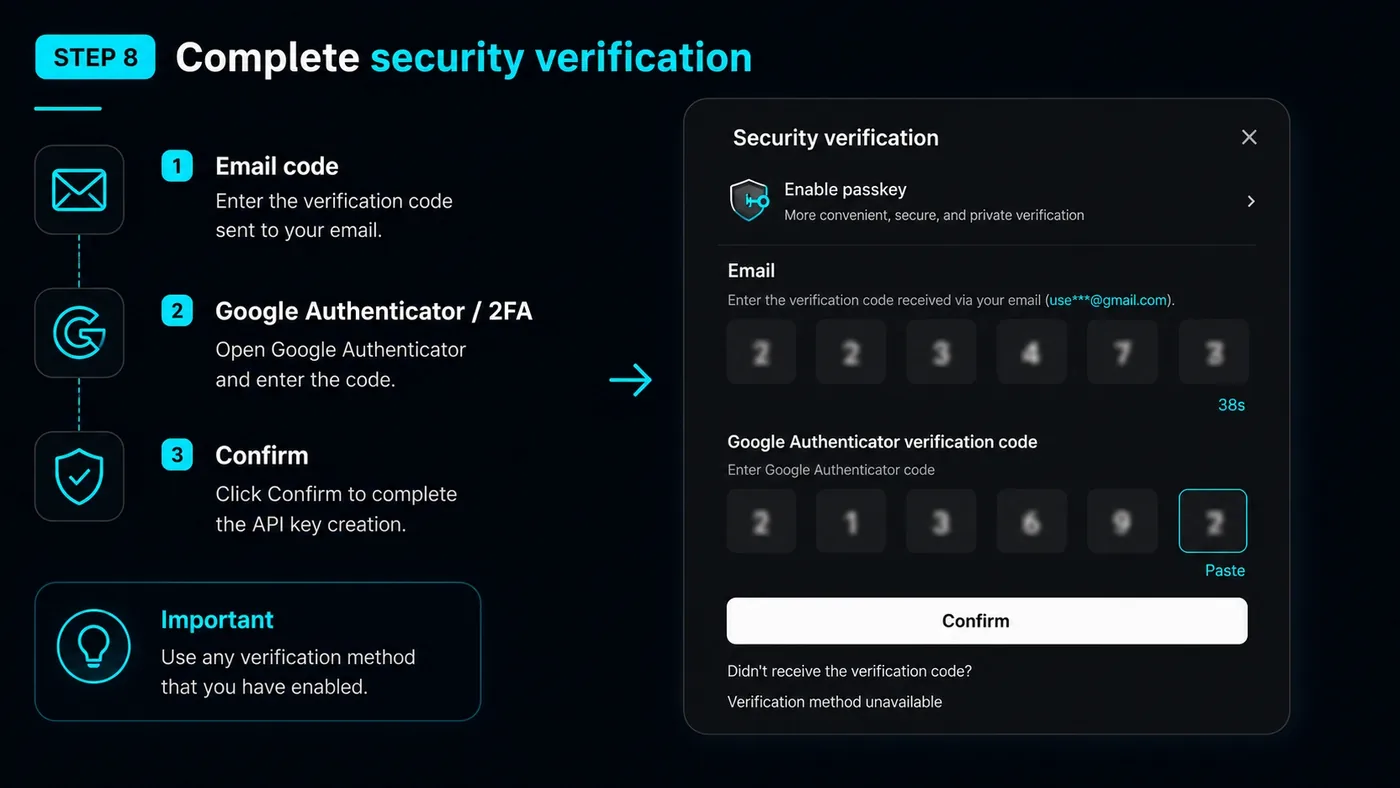
Complete security verification
Bitget may ask you to confirm the API key creation.
Confirm the action through email code, Google Authenticator / 2FA, or another enabled verification method.
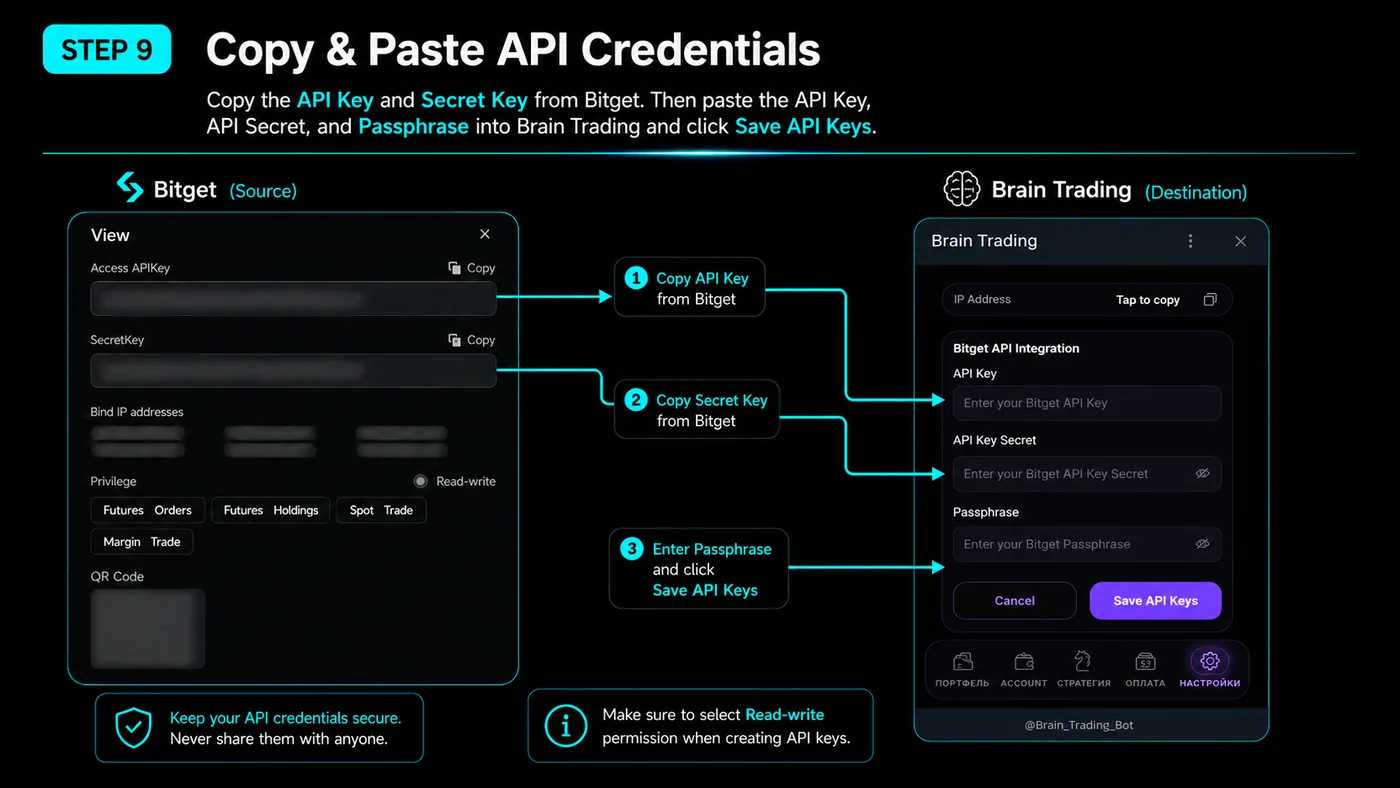
Copy / paste API Key and Secret Key
After creating the API key, Bitget will show the connection data.
Copy Access APIKey and SecretKey.
Important
SecretKey may be shown only once. Save it immediately.
Return to BRAIN Mini App.
Paste:
- API Key
- API Key Secret
- Passphrase
Then click Save API Keys.
Check successful connection
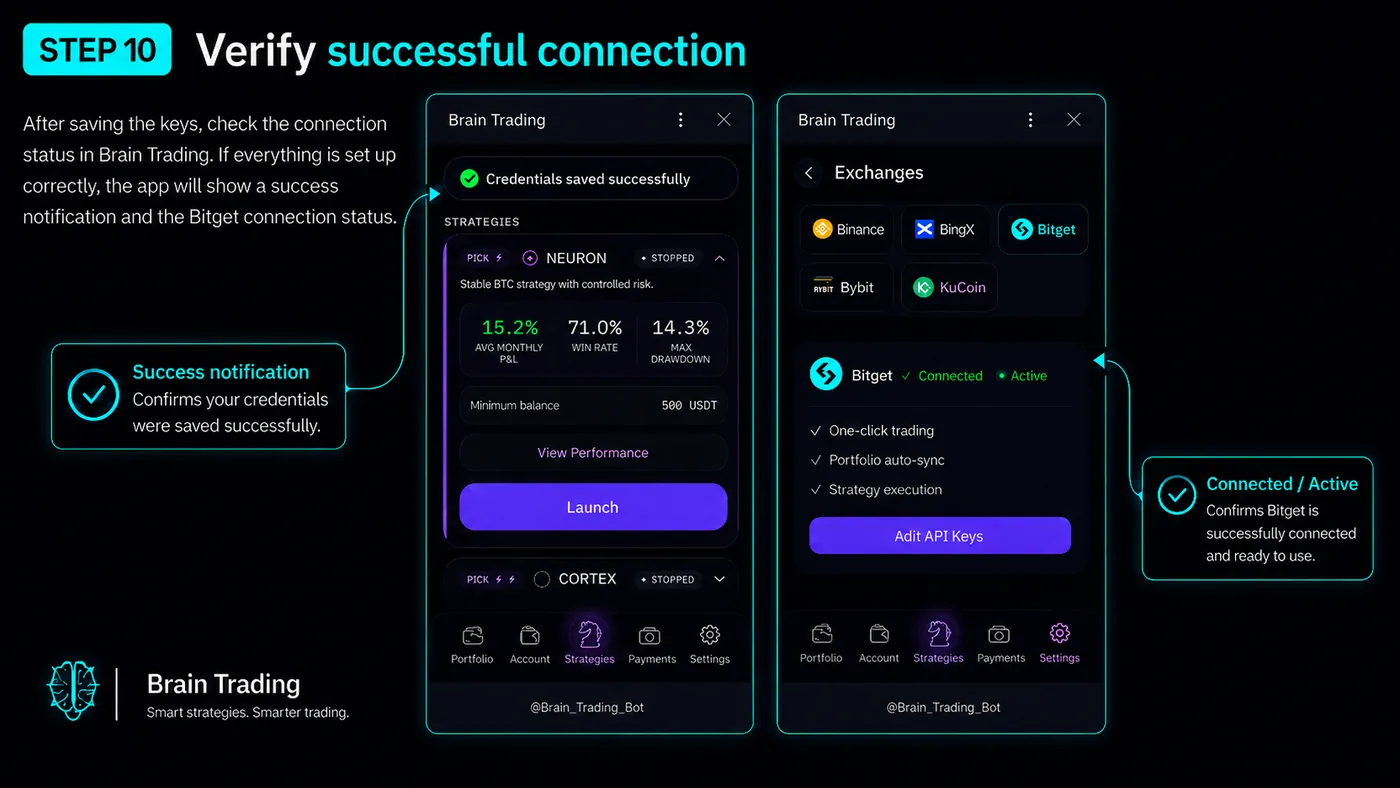
After saving the keys, check the connection status in Brain.
If everything is done correctly, the app will show a notification that the keys were successfully saved and the Bitget connection status.
Bitget notes
Bitget requires Passphrase / API Password when creating an API key. This Passphrase must be created individually and saved immediately because it will be needed when connecting in BRAIN. Even if the API Key and Secret Key are entered correctly, the connection may fail if the Passphrase is incorrect.
For connecting BRAIN, the Futures permissions are enough: Futures Orders and Futures Holdings. Spot Trade and Margin Trade are not needed, and Withdraw, Transfer and sub-account management must stay OFF.