BRAIN Docs
KuCoin API Connection Guide
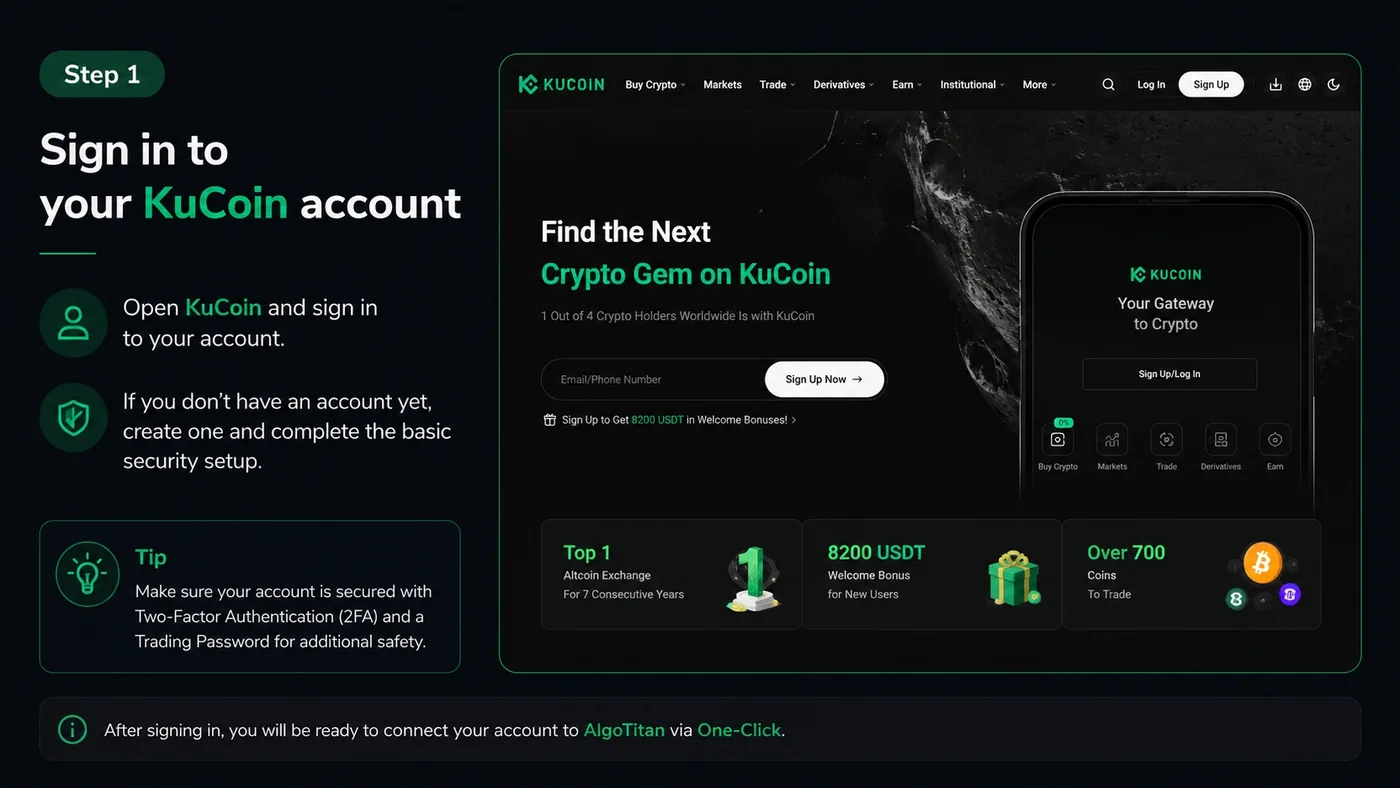
Log in to your KuCoin account
Open KuCoin and log in to your account. If you do not have an account yet, create one first and complete the basic security setup.
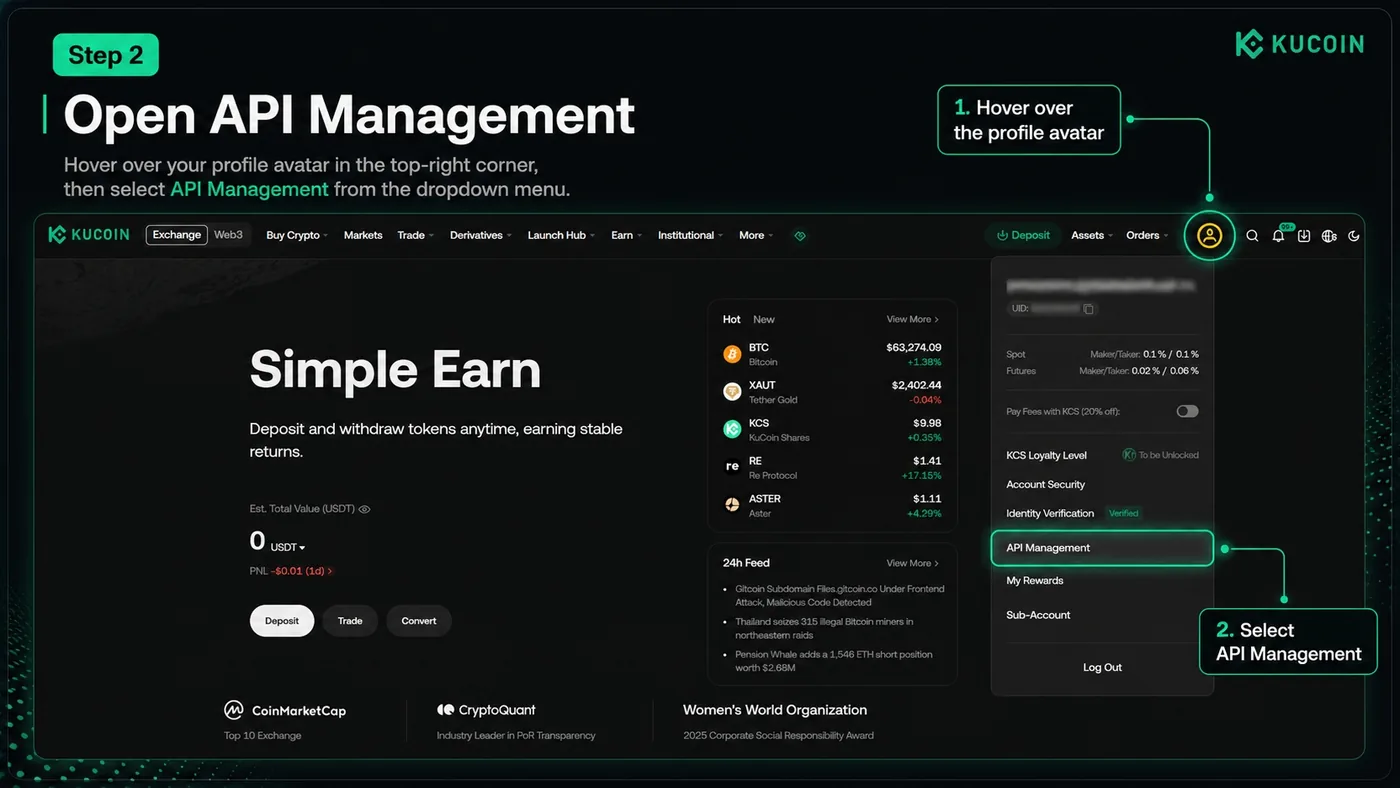
Check access to futures
Before connecting the API, open the Futures / Derivatives section on the exchange. If the exchange shows an activation window, trading guide, risk notice, or introductory steps, confirm them and complete the short setup. Usually, this is enough to activate futures trading on the account.
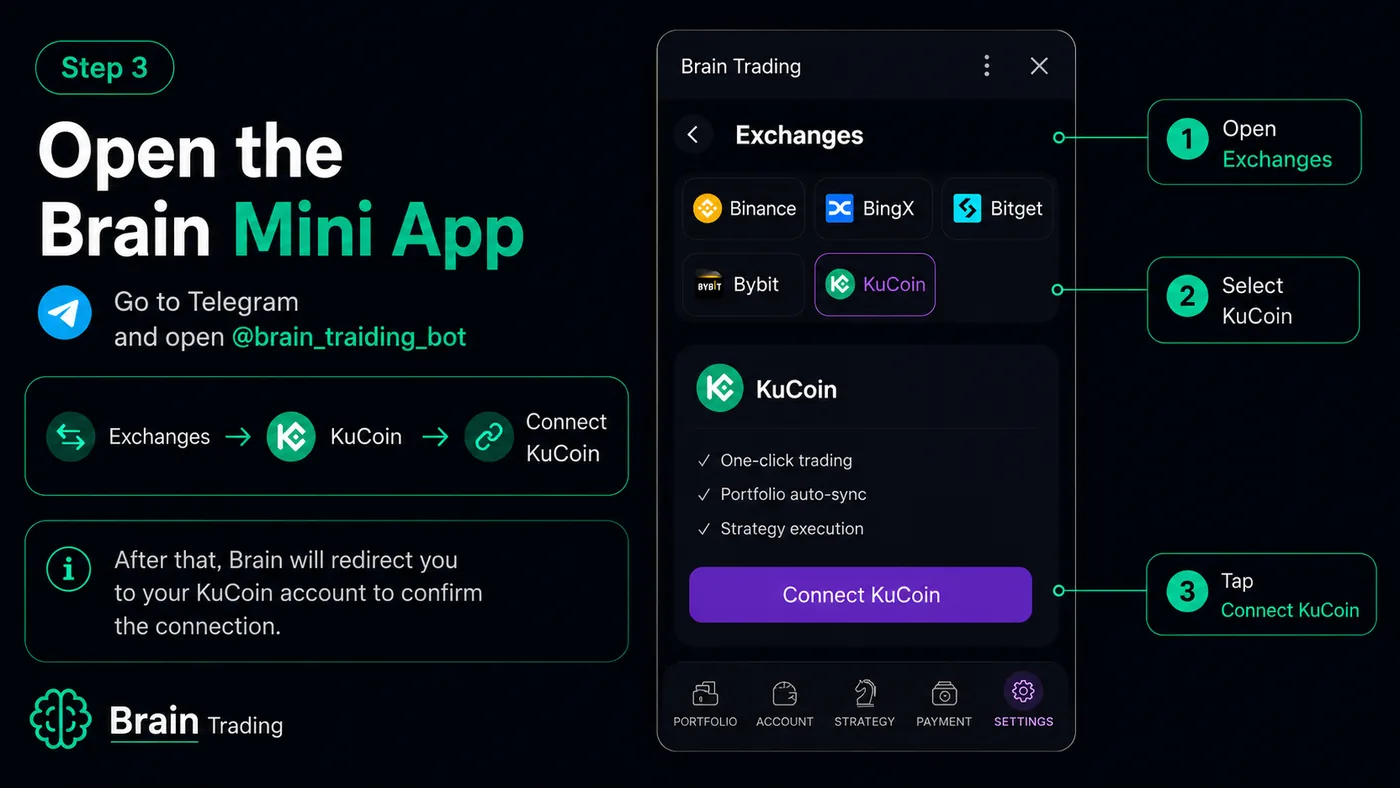
Open BRAIN Mini App
Go to Telegram and open @Brain_Trading_Bot.
Then open: Exchanges → KuCoin One Click → Connect KuCoin
After that, BRAIN will redirect you to your KuCoin account to confirm the connection.
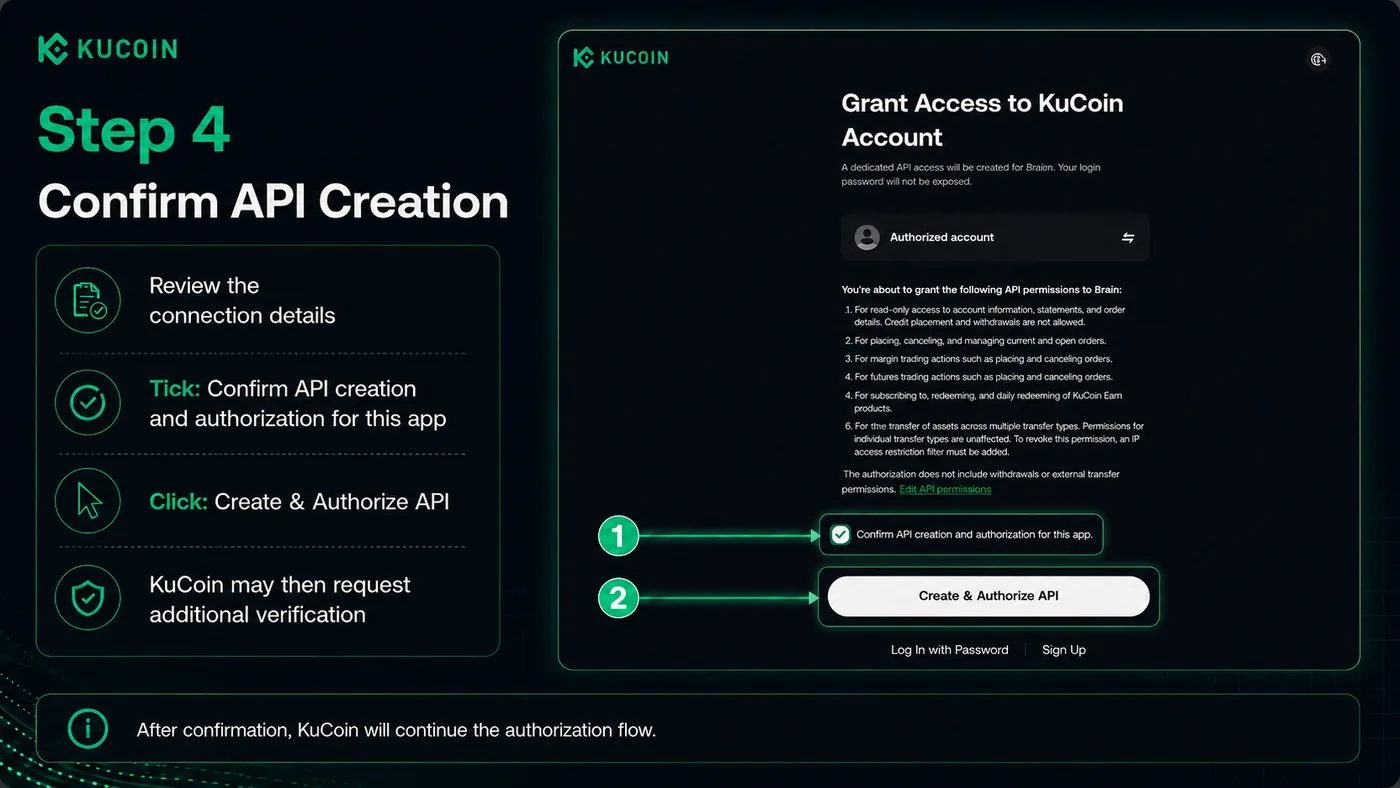
Confirm the connection on KuCoin
Check the box → Confirm API creation and authorization for this app
Then click → Create & Authorize API
After that, KuCoin will proceed to security verification.
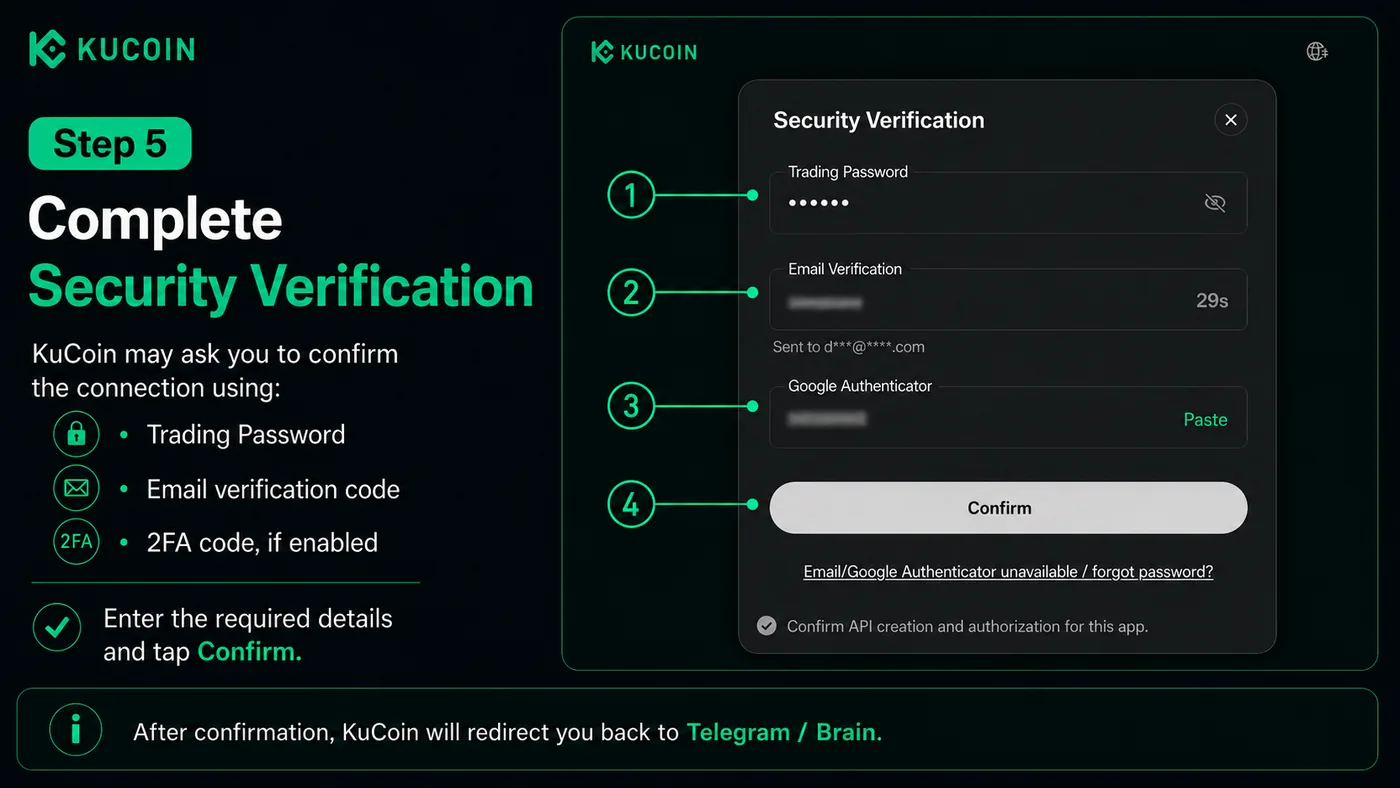
Complete security verification
KuCoin may request additional confirmations:
- Trading Password
- one-time email code
- 2FA code, if enabled
Enter the required data and click Confirm.
After confirmation, KuCoin will automatically redirect you back to Telegram / BRAIN.
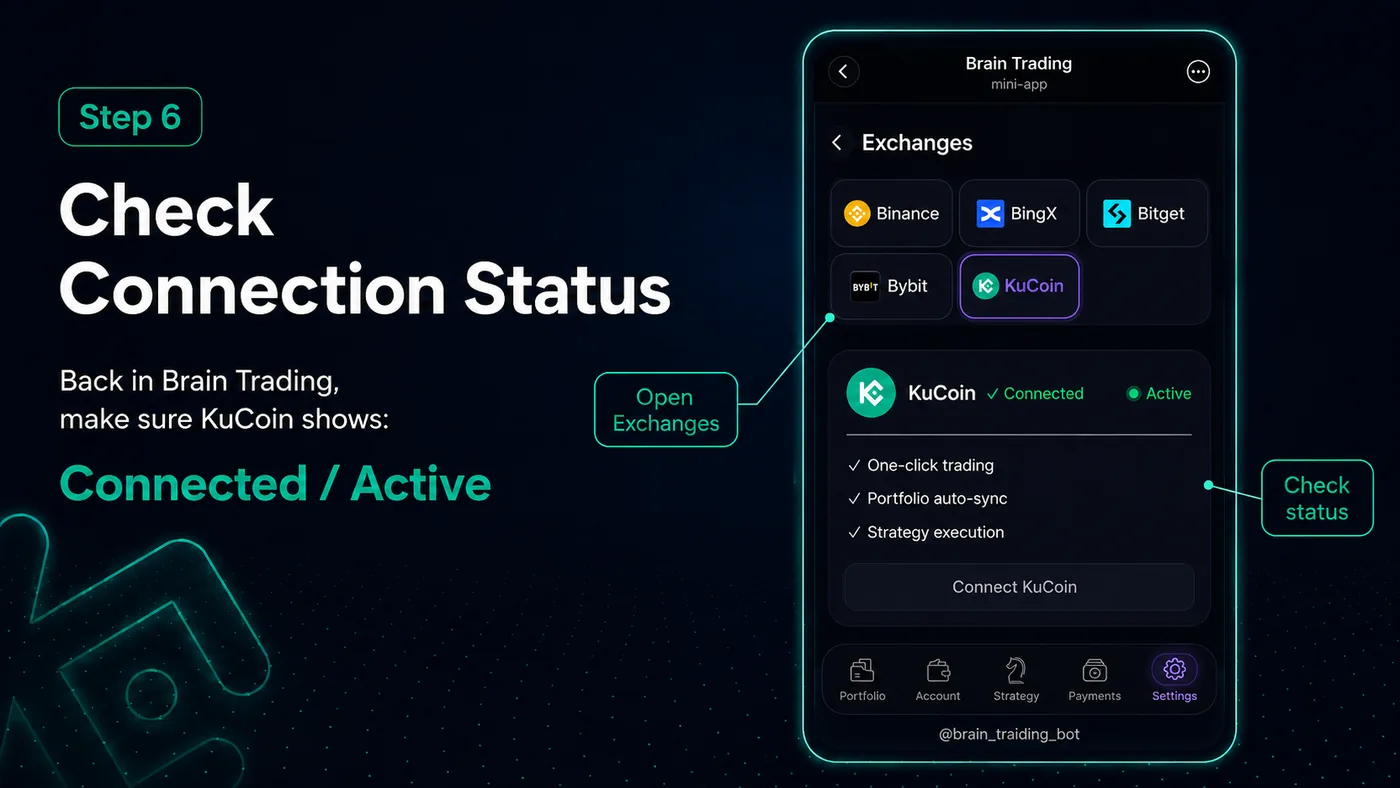
Check the connection status
After returning to BRAIN, check the exchange status. If everything is connected correctly, the status next to KuCoin should show: Connected / Active
KuCoin notes
For KuCoin, One-Click connection is used, so the user does not need to manually copy API Key and Secret Key. The connection is confirmed on the KuCoin side. After confirmation, the user automatically returns to BRAIN. During confirmation, KuCoin may request Trading Password, email code, and 2FA code. If after confirmation the status does not change to Connected / Active, try refreshing the Mini App or repeating the connection.